
Connecting your email to the CRM lets you manage everything in one place. Once connected, you can send and receive emails directly from the CRM and attach emails to clients or projects for easy tracking and collaboration.
Follow the steps below to connect your email account:
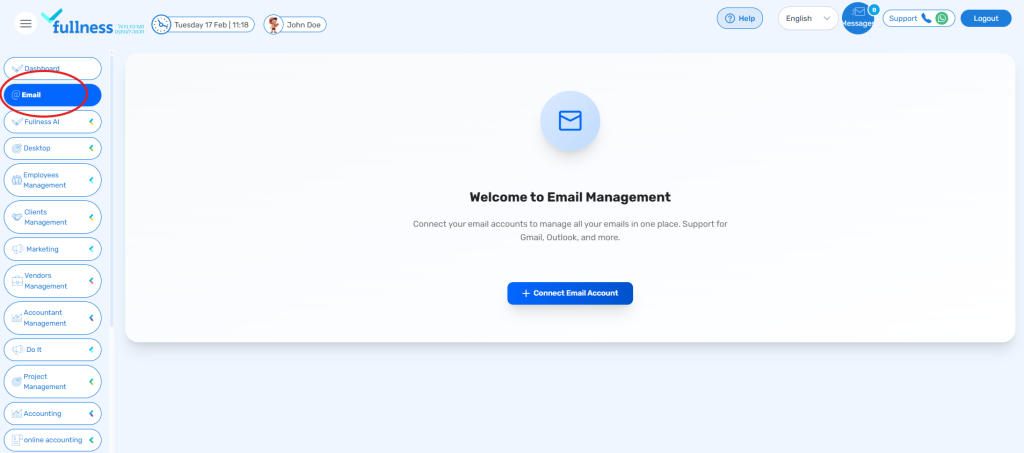
1.Open The Email Tab:
- On the main CRM screen, look at the side panel:
- If your browser is set to English, use the left panel.
- If your browser is set to Arabic or Hebrew, use the right panel.
- Scroll down and click on the “Email” section to open the main Email Dashboard.
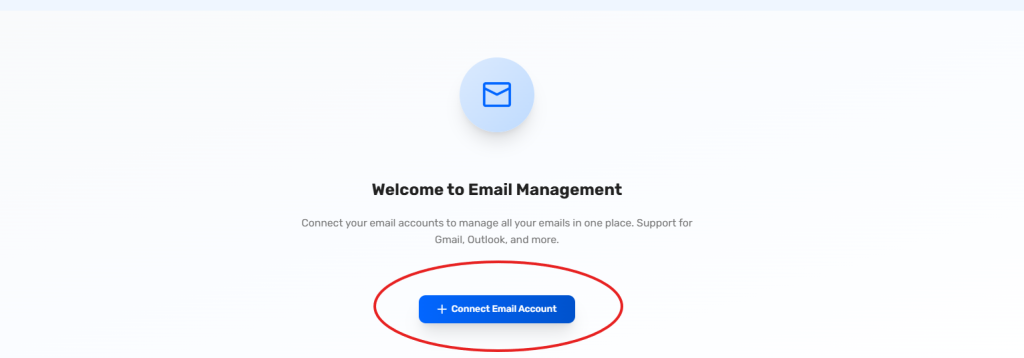
2. Start Connecting Your Email Account
- On the Email Dashboard, click the “Connect Email Account” button.
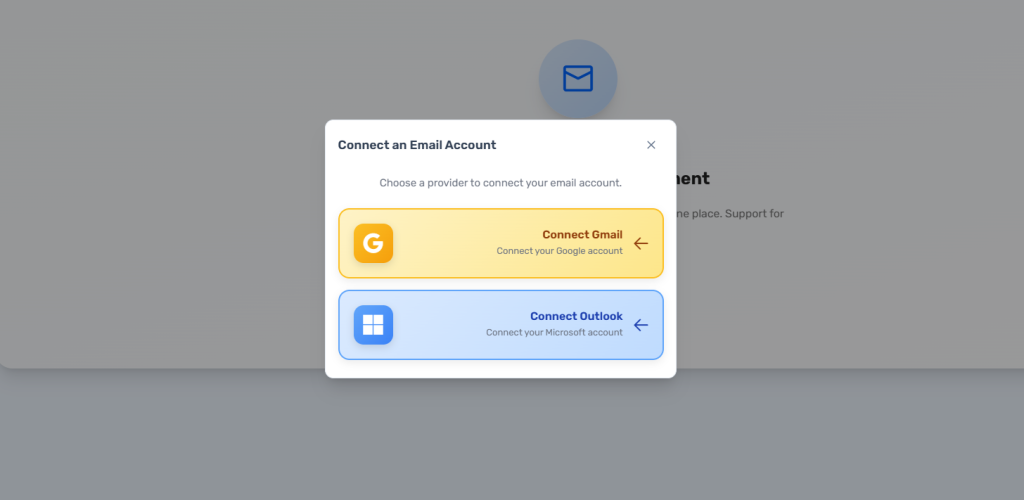
3. Choose Your Email Providor
- A new tab or window titled “Connect an Email Account” will open.
- You will see two options:
- Connect Outlook Account
- Connect Gmail Account
- Click on your preferred email provider.
4. Log in to Your Email Providor
- You will be redirected to your email provider’s login page (Outlook or Gmail).
- Enter your email address and password to sign in.
- Approve any permissions if prompted.
5. Finish Connecting
- Once you log in successfully, you will be redirected back to the CRM.
- Your email account will now be connected and accessible inside the CRM, allowing you to send, receive, and manage emails directly from the platform.


