
Follow the steps below to Create a New Employee in the Employees Management section of the CRM.
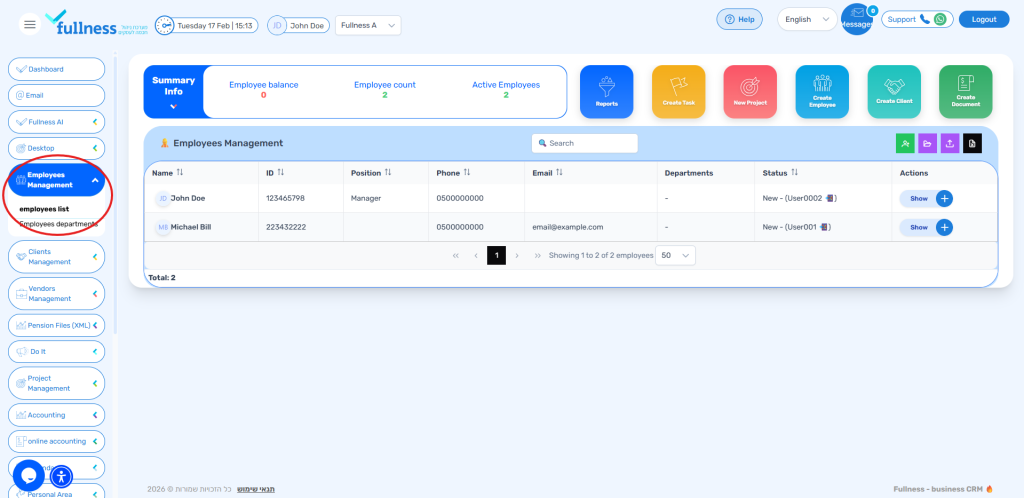
- Navigate to Employees Management
- On the main CRM screen, locate the side bar:
- For browsers set to English, the side bar appears on the left side of the screen.
- For browsers set to Arabic or Hebrew, the side bar appears on the right side of the screen.
- Click on the Employees Management tab.
- On the main CRM screen, locate the side bar:
- Click Add Employee
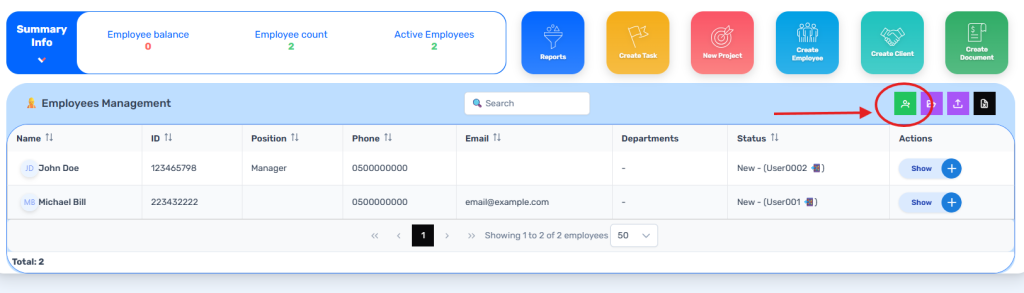
- Once inside Employees Management, locate the green Add Employee button at the top right side of the table.
- Click the Add Employee button to open the information tab.
- Fill Out Employee Information
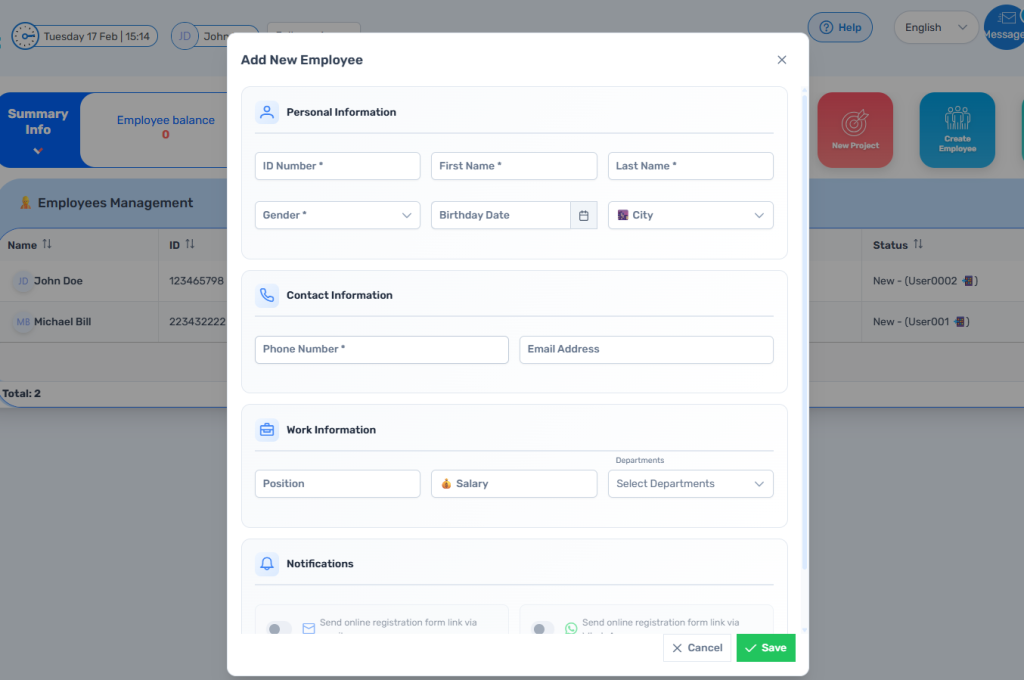
- In the information tab, complete the required details, including:
- Personal Information
- Contact Information
- Work Information
- In the information tab, complete the required details, including:
- Save and Create the Employee
- After filling out all relevant fields, scroll to the bottom of the tab.
- Click the Save button to Create a New Employee.
- Confirm Employee Creation
- The new employee will now appear in the Employees Management table, where you can view and manage their details.


