Task Management helps you organize work, assign responsibilities, track progress, and manage deadlines—all in one place. Follow the steps below to create a new task.
- Open the Task Management section
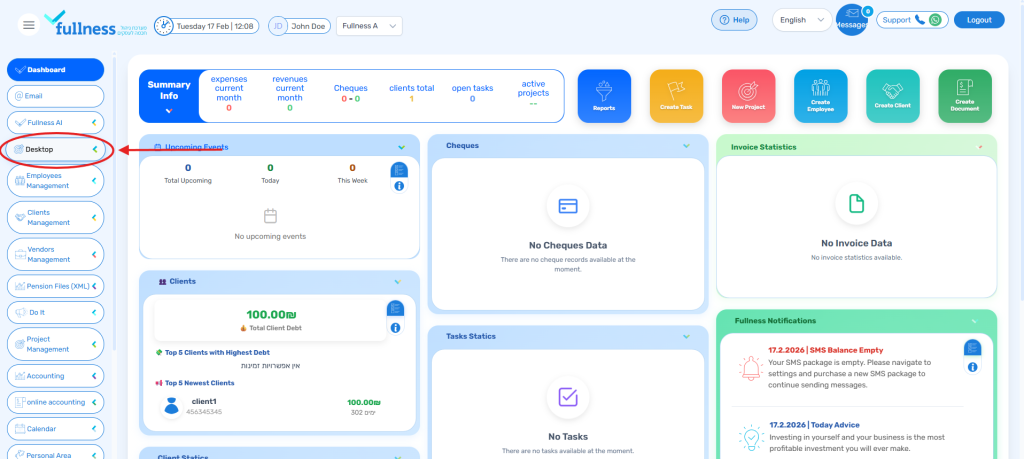
- From the main CRM screen, use the side bar.
- Go to the “Desktop” section.
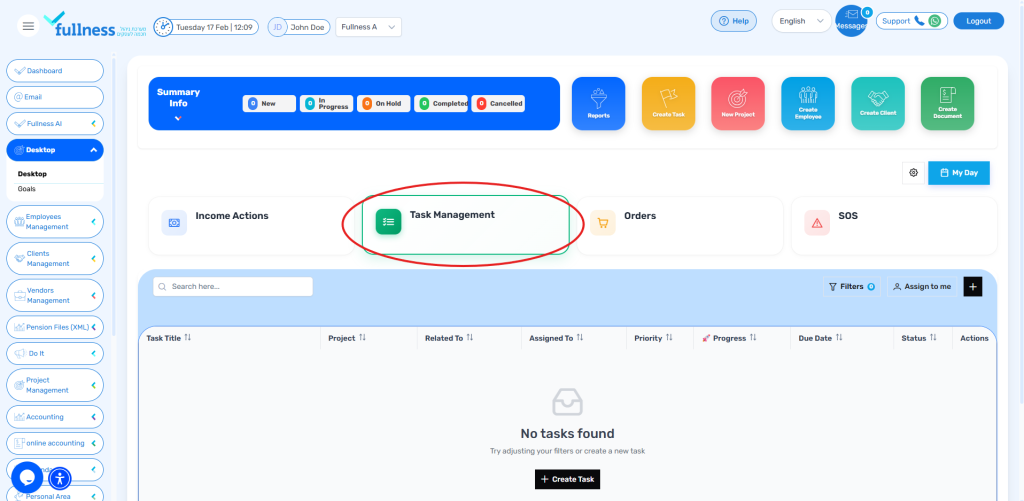
- Inside Desktop, open “Task Management.”
- Inside Desktop, open “Task Management.”
- Create New Task
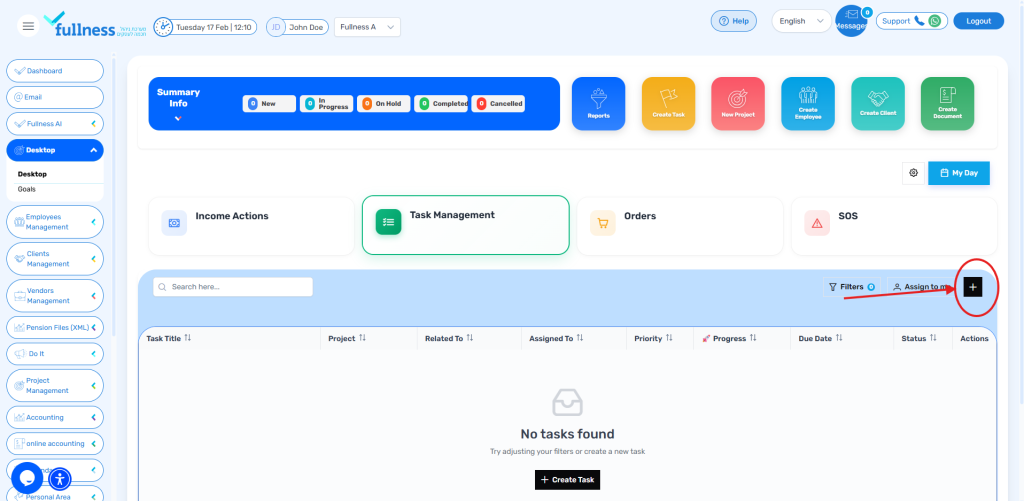
- On the Task Management page, look at the left side of the table.
- Click the “Add New Task (+)” button.
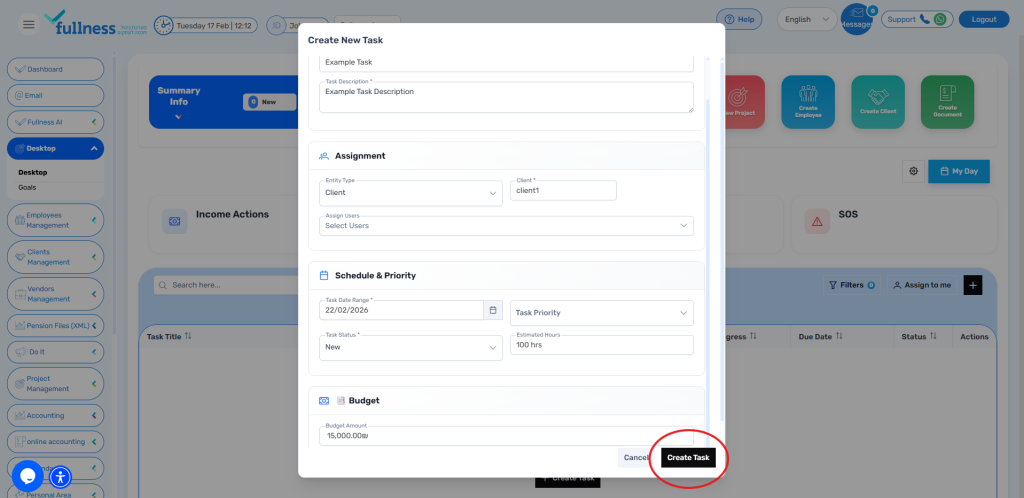
Fill in the Basic Information
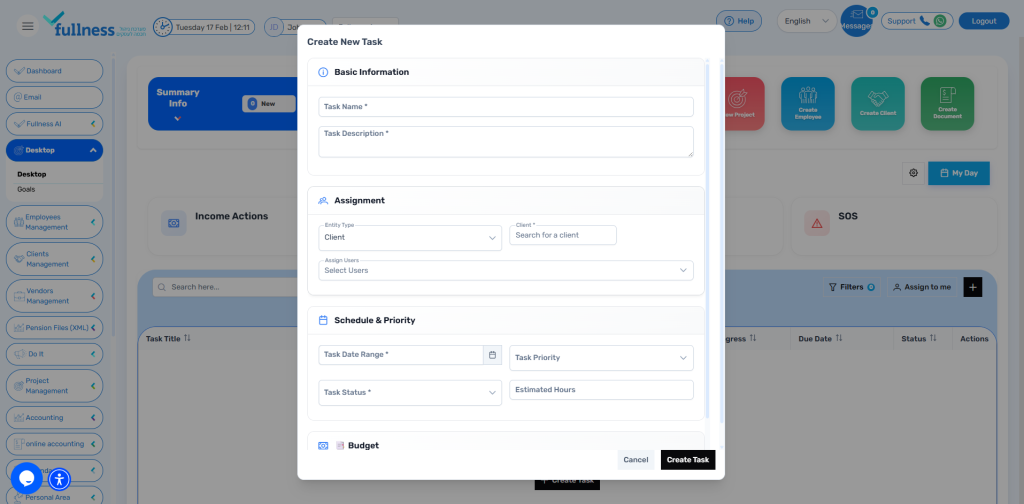
- A tab titled “Create New Task” will open.
- Complete the required Basic Information, including:
- Task Name – A clear title for the task
- Task Description – What needs to be done
- Associated Client – The client linked to this task
- Handling Employee – Who is responsible for the task
- Start Date / End Date – Task timeline
- Task Status – Current status (e.g., New, In Progress, Completed)
- Estimated Required Hours – How long the task is expected to take
- Task Priority – Priority level (e.g., Low, Medium, High)
- Budget – Budget allocated for the task (if applicable)
Create the task
- Once all required fields are filled out, click the “Create Task” button.